

Terminal-based coding agents are genuinely productive, but a terminal is a poor place to review a long tool-call history, compare Git diffs, or preview an image the agent generated. Pi Web is a local browser interface built specifically for the Pi coding agent, reading the exact same local configuration and session files Pi's CLI already writes — so it's a second window into the same agent state, not a separate tool you have to keep in sync.
The problem it solves is practical. As coding agents take on longer tasks, the useful information piles up: dozens of tool calls, edits across many files, branches of a conversation you explored and abandoned, and cost and context usage you'd like to keep an eye on. Scrolling back through a terminal to reconstruct that is slow, and it gets worse when you're running the agent across several Git worktrees at once. A visual layer helps, but only if it doesn't create a second source of truth or quietly open a security hole.
This article explains how Pi Web works and where it fits. It covers the shared-session design, the two ways it lets you branch a conversation, its Git worktree and file preview tools, the configuration panel, how to install and run it, the Next.js structure and its file-access boundary, and the security model for anything beyond localhost. It finishes with a short safety checklist and answers to common questions.
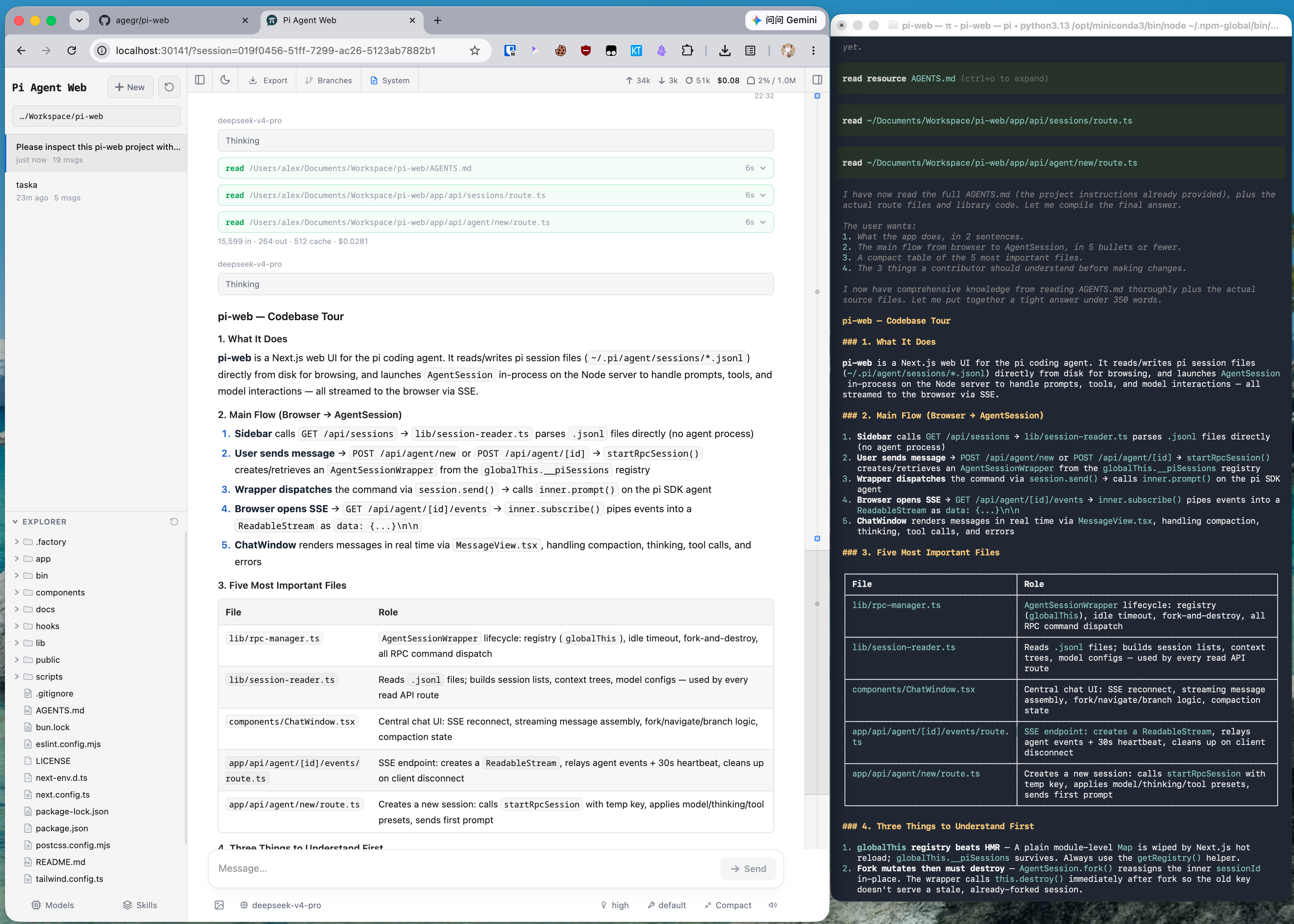
A Real Window Into Existing Sessions, Not a New Client
Because Pi Web shares Pi's local session files directly, conversations started in the terminal show up in the browser and vice versa — you can browse, resume, rename, export, and delete sessions grouped by project, with running state, context usage, cost, and compaction details visible at a glance. That shared-state design is the actual value proposition: this isn't a separate chat client that happens to talk to the same models, it's a genuinely alternate view onto the same underlying agent runtime and history.

Branching a Conversation Two Different Ways
A small but genuinely useful detail: Pi Web distinguishes between New session, which spins up an independent session file starting from an earlier message, and Edit from here, which creates a branch inside the current session. That's a real distinction worth having — sometimes you want to explore an alternate path without touching the original conversation at all, and sometimes you specifically want the branch to stay attached to where it came from. Most chat interfaces collapse this into one "edit and resend" behavior; keeping them separate gives more deliberate control over how session history actually gets structured.

Git Worktrees and Project File Tools, From the Browser
Beyond conversation management, Pi Web exposes the project-level tooling an agent session actually needs: browsing and uploading files, inspecting Git diffs, and previewing source code, Markdown, images, audio, PDFs, and DOCX files with automatic refresh as the agent works. A sidebar worktree switcher lets you change checkouts while keeping sessions from the same repository grouped together — useful for anyone running Pi against multiple branches or parallel work streams and wanting to review each in its own browser tab rather than juggling separate terminal windows.
It Handles Configuration, Not Just Viewing
Pi Web isn't limited to browsing sessions and files — the Models panel lets you sign in to a provider or add an API key, manage models, run model tests, install plugin packages, and manage skills without ever leaving the browser. Because that panel reads and writes through Pi's own model, settings, and credential storage, changes made in Pi Web are visible to the CLI immediately, and vice versa — there's no separate configuration surface to keep in sync. If no model provider is configured yet when you first open it, that's exactly where you're pointed to get started.
Benefits of Pi Web
Pi Web's value comes from adding a visual layer without adding a second source of truth. The specific benefits follow from that design.
Easier Review of Long Agent Sessions
Long agent tasks generate dozens of tool calls, edits, and messages. Scrolling a terminal to reconstruct what happened is slow and error-prone. Pi Web presents the same session as structured Markdown with tool calls, context usage, cost, and compaction details visible, so reviewing what an agent did, and why, takes minutes instead of a careful scroll back through output. That matters most when you return to a session after a break and need to pick up where the agent left off.
No Sync Problems Between Interfaces
Because Pi Web reads and writes the same local session and configuration files as the Pi CLI, a session started in the terminal appears in the browser and vice versa. There is no import, export, or background sync to break. Model settings and credentials changed in one interface are immediately visible in the other, which removes a whole class of "which config is this using?" confusion.
Better Diff and File Inspection
A browser is simply better than a terminal for comparing Git diffs and previewing images, PDFs, Markdown, audio, and DOCX files. With automatic refresh as the agent works, you can watch changes land and check generated assets in place, rather than opening separate tools for each file type. It keeps review in one window.
Cleaner Parallel Work Across Worktrees
The worktree switcher keeps sessions from the same repository grouped while letting you move between checkouts. Developers running the agent on several branches can review each in its own tab, which is far easier to follow than juggling multiple terminal windows with similar-looking output and guessing which one is which.
Deliberate Control Over Conversation History
Separate "New session" and "Edit from here" actions let you choose whether an exploration becomes an independent session or a branch of the current one. That keeps session history organised the way you intend, including how cost and context are tracked, so you can tell later which experiment consumed what.
Pi Web Use Cases
These are the situations where Pi Web adds the most to an existing Pi setup. Each one builds on the shared-session design, so the terminal and browser can be used together rather than as alternatives.
Reviewing an Agent's Work Before Committing
A developer lets Pi work through a bug fix across several files, then opens the session in Pi Web to read the tool-call history and inspect the Git diff side by side. The browser view makes it easier to spot an unexpected edit or a test that was skipped. The outcome is a more careful review step before the change is committed, without leaving the shared session.
Running Parallel Work Streams
An engineer uses separate Git worktrees for a feature branch and a hotfix, with Pi sessions in each. Pi Web's worktree switcher keeps both visible in browser tabs, grouped by repository, so progress on each stream can be checked without losing track of which terminal belongs to which branch or mixing up their changes.
Exploring Alternative Approaches
When an agent's approach looks wrong halfway through, a developer uses "Edit from here" to branch the conversation and try a different path, or "New session" to start an independent attempt from an earlier message. Comparing the two in the browser helps decide which result to keep, and the other path remains available if the first choice turns out to be wrong.
Previewing Generated Assets
For tasks that produce images, documentation, PDFs, or DOCX files, Pi Web's previews with auto-refresh let the developer check output as it is generated rather than opening each file in a separate application. Problems in generated output get caught while the agent is still working, which makes them cheaper to correct.
Setting Up and Testing Models
New users configure providers, add API keys, run model tests, and manage skills and plugin packages from the Models panel, which writes to the same storage the CLI reads. That gives a guided starting point for people less comfortable editing configuration files by hand, and a quick way to confirm a new key works before starting a long task.
Pi Web vs the Pi CLI
Pi Web is designed as a companion to the Pi CLI rather than a replacement, so the useful comparison is about which interface suits which task.
| Factor | Pi CLI (terminal) | Pi Web (browser) |
|---|---|---|
| Session data | Writes local session files | Reads and writes the same files |
| Reviewing long histories | Scroll through terminal output | Structured view with tool calls, cost, and context |
| Git diffs and file previews | External tools or terminal output | Built-in diff view and previews with auto-refresh |
| Worktree handling | One terminal per checkout | Sidebar switcher with grouped sessions |
| Model and skill configuration | Config files and CLI commands | Models panel writing to the same storage |
| Network exposure | None beyond the agent's own actions | Loopback by default, can be exposed if configured |
The terminal remains the natural place to drive the agent for many developers. It is fast, scriptable, and sits next to the rest of their command-line workflow. Nothing about Pi Web changes how the agent itself runs, because both interfaces operate on the same runtime state and configuration.
Where Pi Web pulls ahead is inspection. Reading a long session, comparing diffs, previewing generated files, and switching between worktrees are all tasks a browser handles better than a terminal. Because the session files are shared, developers can move between the two freely, driving work from the terminal and reviewing it in the browser.
The trade-off is exposure. The CLI has no listening server of its own, while Pi Web runs one. On the default loopback binding that difference is small, but anyone who changes the hostname to reach Pi Web from another device is adding a network-reachable interface to an agent that can execute commands. That is why the security guidance below matters more for Pi Web than for the CLI.
Getting Started
Pi Web requires Node.js 22.19.0 or newer. The fastest way to try it is npx @agegr/pi-web@latest, which starts the server and opens a browser automatically once it's ready — if it doesn't, the default address is http://127.0.0.1:30141. For a persistent install, npm install -g @agegr/pi-web@latest sets up the pi-web command globally; updating means stopping the process and rerunning the same install command, and uninstalling is a plain npm uninstall -g @agegr/pi-web.
Port and hostname are configurable via --port/-p or the PORT environment variable, and --hostname/-H or PI_WEB_HOSTNAME; --no-open (or PI_WEB_NO_OPEN=1) skips the automatic browser launch, which is useful when running it as a background service. Server-side model and API requests also honor the standard HTTP_PROXY, HTTPS_PROXY, and NO_PROXY environment variables, so it fits into an existing corporate-proxy setup without extra configuration. By default, Pi Web reads agent data from ~/.pi/agent, including session files stored under sessions/<encoded-cwd>/<timestamp>_<uuid>.jsonl; setting PI_CODING_AGENT_DIR points it at a different agent directory if you need to run against a non-default location.
Built on Next.js, With a Deliberate File-Access Boundary
Pi Web is a TypeScript project structured as a fairly conventional Next.js app: UI and API routes live in app/, React components in components/, client state and interaction hooks in hooks/, and the session, agent, model, file, Git, and security logic in lib/. The bin/ directory holds the npm CLI entrypoint and launch-option parsing that turns pi-web into a runnable command. That structure matters less for end users than one specific design choice buried in it: the file browser is explicitly scoped to working directories you've selected in Pi Web plus the project and session roots it already knows about — it's not a general filesystem browser, even though it's reading and writing through the same credential and session store the Pi CLI uses.
The interface itself follows the browser's language on first load and includes a language switcher, with English and Simplified Chinese both supported as first-class UI languages — a detail worth knowing if your team isn't English-only. For anyone embedding Pi Web inside a larger app, there's also a documented extension point: Electron wrappers and other downstream integrations can listen for a cancelable pi-web:session-row-contextmenu browser event to substitute their own session-row context menu without patching Pi Web's own SessionSidebar component directly — a narrow, deliberate hook rather than an open plugin system.
The Security Model Is Documented Honestly
This is worth reading directly before deciding how to run it. Pi Web listens only on 127.0.0.1 by default — loopback-only, not reachable from the network — and the project is explicit about what changes if you bind it elsewhere: binding to a non-loopback address exposes an agent that can execute high-privilege actions, and the documentation recommends a long random password via HTTP Basic Auth if you do that on a trusted LAN. Just as important, it states plainly that Basic Auth doesn't encrypt the password in transit, and explicitly warns against exposing Pi Web over plain HTTP to the internet — HTTPS through a trusted reverse proxy or a trusted VPN is the stated requirement for anything beyond a local machine or trusted LAN. That's a genuinely clear, non-hand-wavy security posture for a tool whose whole job is giving browser access to an agent that can run commands and touch files.
Common Pi Web Mistakes
Pi Web is simple to start, which makes a few mistakes easy to make without noticing. Most of them concern exposure and access rather than features.
Binding to a Network Address for Convenience
Changing the hostname so Pi Web can be reached from a laptop or phone is tempting, but it exposes an agent that can run high-privilege commands. Doing so with default settings, no password, or plain HTTP turns a local developer tool into a remote-execution target. If remote access is genuinely needed, use the documented combination of a long random password and HTTPS through a trusted reverse proxy or VPN.
Treating Basic Auth as Sufficient
HTTP Basic Auth on its own sends the password unencrypted. Teams that add a password and stop there have only partly secured the setup. Authentication and encryption need to go together for anything beyond the local machine, and the password should be long, random, and unique to this setup.
Adding Broad Working Directories
The file browser is scoped to selected working directories plus known project and session roots. Adding a home directory or other broad path gives every session more reach than it needs. Add only the directories a session genuinely requires, and remove them when the work is done.
Forgetting That Credentials Are Shared
The Models panel writes to the same credential storage the CLI uses. Anyone who can reach Pi Web can use those provider keys, which matters if the interface is ever exposed or shared on a machine with other users.
Confusing the Two Branching Modes
Using "Edit from here" when you meant to start an independent session, or the reverse, scatters work across session history in ways that are hard to untangle later, including how cost and context usage are tracked. Learn the difference before relying on branching in real work.
Pi Web Best Practices for Running It Safely
Because Pi Web gives a browser access to an agent that can run commands and edit files, a few habits are worth adopting from day one. These follow directly from the project's own documentation:
- Keep the default loopback binding. Leave it on
127.0.0.1unless you have a specific reason to reach it from another device. Most people never need to change this. - If you must expose it, add authentication and encryption together. Use a long random password with HTTP Basic Auth and put Pi Web behind HTTPS through a trusted reverse proxy or a trusted VPN. Basic Auth alone sends the password unencrypted.
- Never put it on the public internet over plain HTTP. The project warns against this explicitly, and an exposed agent with command execution is an attractive target. The same reasoning applies to any browser-facing agent tooling.
- Be deliberate about working directories. The file browser is scoped to directories you select plus known project and session roots, so only add the directories an agent session genuinely needs.
- Treat credentials in the Models panel like any other secret. Changes there write to the same credential storage the CLI uses, so anyone with access to Pi Web can also use those provider keys.
- Pin the version you rely on. It's a young, actively developed tool. Update intentionally, and check release notes before upgrading a setup that others depend on.
- Run it with
--no-openas a service only when you need to. A background service that is always running is always reachable. If you only use the browser view occasionally, start Pi Web when you need it and stop it afterwards, which keeps the window of exposure small even on a local machine. - Review exported sessions before sharing them. Exports can contain file contents, command output, and details about your environment. Read through an export before sending it to a colleague or attaching it to an issue, and remove anything sensitive.
None of this is unusual, but it's easy to skip when a tool works with one command. The broader principles of AI agent security apply here just as they do to production agents.

Practical Implications
- The default, loopback-only setup is the right choice for almost everyone — running Pi Web to get a browser UI on the same machine where Pi already runs, with no network exposure at all.
- Take the remote-access warnings literally, not as boilerplate. An agent reachable from a network that can execute high-privilege actions is a real target; if you do open it up beyond localhost, use the documented password-plus-HTTPS-proxy setup rather than binding it open on a LAN with defaults.
- The dual branching model is worth understanding before you rely on it — knowing whether you're creating an independent session or a branch inside the current one changes how your session history and cost tracking end up organized.
- This is a companion tool, not a replacement for the Pi CLI — it's genuinely useful as a second interface onto the same sessions, not something you'd choose over the terminal experience entirely.
Practical Takeaway
Pi Web is a well-scoped companion to Pi — sharing session state directly rather than reimplementing agent logic, adding the specific things a browser does better than a terminal (diff review, file preview, visual session management), and being unusually direct about the real security trade-offs of exposing it beyond localhost. For anyone already running Pi and wanting a visual layer on top of the same sessions, it's a low-risk addition as long as the default loopback binding stays the default.
Teams building or evaluating browser-based interfaces for coding agents, or thinking through the security model for exposing agent tooling beyond a single machine, can get hands-on help from Woyce Technologies.
FAQ
What is Pi Web?
Pi Web is an open-source, local browser interface for the Pi coding agent. It reads the same local configuration and session files as Pi's CLI, letting you browse, resume, and manage agent conversations, inspect project files, and switch Git worktrees from a browser. Because it shares state with the CLI, anything you do in one interface shows up in the other.
Is Pi Web free to use?
Yes, it's MIT-licensed and open source, installable via npx @agegr/pi-web@latest or as a global npm package. The tool itself costs nothing. Any costs come from the model providers you connect through Pi, which Pi Web helps you track by showing cost and context usage for each session alongside the conversation.
Does Pi Web replace the Pi command-line interface?
No — it's a companion tool that shares the same session files and configuration, giving a browser-based view onto the same agent state rather than replacing the CLI experience. Many people keep working in the terminal and open Pi Web when they need something a browser does better, such as reviewing a long tool-call history, comparing Git diffs, previewing generated files, or managing sessions across several worktrees.
Is it safe to expose Pi Web to my network?
Only with real precautions. It binds to localhost only by default. Binding to a non-loopback address exposes an agent capable of high-privilege actions, and the project explicitly recommends a long random password plus HTTPS through a trusted reverse proxy or VPN — never plain HTTP over the open internet. For most people, keeping the default is the safest choice.
What's the difference between "New session" and "Edit from here" in Pi Web?
"New session" creates an independent session file starting from an earlier message. "Edit from here" creates a branch inside the current session instead, keeping it attached to the original conversation. Use New session when you want a clean, separate line of work that won't affect the original history. Use Edit from here when you want to try an alternative while keeping it organised alongside the conversation it came from.
What file types can Pi Web preview?
Source code, Markdown, images, audio, PDF, and DOCX files, with automatic refresh as files change during an agent session. That's especially useful when an agent is generating documents, images, or audio, since you can watch the output update in the browser instead of opening each file manually. Git diffs can be inspected in the same interface.
How do I install and run Pi Web?
The fastest way is npx @agegr/pi-web@latest, which requires Node.js 22.19.0 or newer and opens a browser automatically once the server is ready. For a persistent command, install it globally with npm install -g @agegr/pi-web@latest and run pi-web. If the browser doesn't open on its own, visit the default local address. If no model provider is configured yet, Pi Web points you to the Models panel to add one first.
Can I change the port or hostname Pi Web listens on?
Yes — --port/-p or the PORT environment variable sets the port, and --hostname/-H or PI_WEB_HOSTNAME sets the bind address. The default is 127.0.0.1:30141, loopback-only. Adding --no-open skips the automatic browser launch, which helps when running it as a background service. Remember that changing the hostname to a network-reachable address changes the security picture, so read the remote-access guidance first.
Does Pi Web support languages other than English?
Yes — the interface follows the browser's language on first load and includes a manual language switcher, with English and Simplified Chinese currently supported as first-class UI languages. This only affects the interface itself. The language used in conversations with the agent depends on the model you've connected and how you prompt it, not on Pi Web's settings.
Can Pi Web be embedded or extended by other applications?
There's a narrow, documented extension point for this: Electron wrappers and other downstream integrations can listen for the cancelable pi-web:session-row-contextmenu browser event to supply their own session-row context menu without modifying Pi Web's source directly. It's intentionally narrow rather than a general plugin system. For deeper changes, the MIT license and conventional Next.js structure make forking practical, though you'd then need to keep up with upstream changes yourself.
Conclusion
Terminal coding agents are fast to work with but awkward to review. Long tool-call histories, diffs across many files, generated media, and parallel worktrees are all hard to follow in a scrolling terminal. Pi Web addresses that by adding a browser view over the same local sessions and configuration the Pi CLI already uses, rather than creating a separate client with its own state.
The useful details are the ones that respect how people actually work: two distinct ways to branch a conversation, file and diff previews that refresh as the agent works, a worktree switcher that keeps related sessions grouped, and a Models panel that writes to the same settings the CLI reads. The file browser's scoped access and the loopback-only default show a tool that has thought about its own risks.
The main caveat is security. Pi Web exposes an agent that can run commands, so anything beyond localhost needs a strong password, HTTPS through a trusted proxy or VPN, and a clear reason. It's also a young project, so pin versions. If you're building interfaces or access controls for coding agents in your own organisation, talk to our AI agent development team.