

Most terminal coding agents converge on roughly the same feature set: read files, edit files, run commands, call an LLM. Kimi Code CLI is Moonshot AI's entry in that space, built around its own Kimi models — and it distinguishes itself less on the basics than on a few specific choices: a genuinely fast single-binary install, first-class support for driving a session from inside an editor, and a video-input capability most coding agents simply don't have.
If you are choosing a terminal coding agent for yourself or a team, the field is crowded and the feature lists look almost identical. The differences that actually affect day-to-day work are less obvious: how painful installation and upgrades are, whether the agent can live inside the editor your team already uses, how safely it handles third-party plugins and MCP servers, and whether it can take input beyond text. Those details decide whether a tool sticks or gets abandoned after a week.
This explainer walks through what Kimi Code CLI does differently: its single-binary distribution, video input, Agent Client Protocol support, built-in subagents and hooks, the trust-labelled plugin marketplace, conversational MCP setup, the web interface, and the optional computer-use and browser extensions. It finishes with a short getting-started sequence, practical implications for teams, and answers to common questions about cost, editors, and building from source.
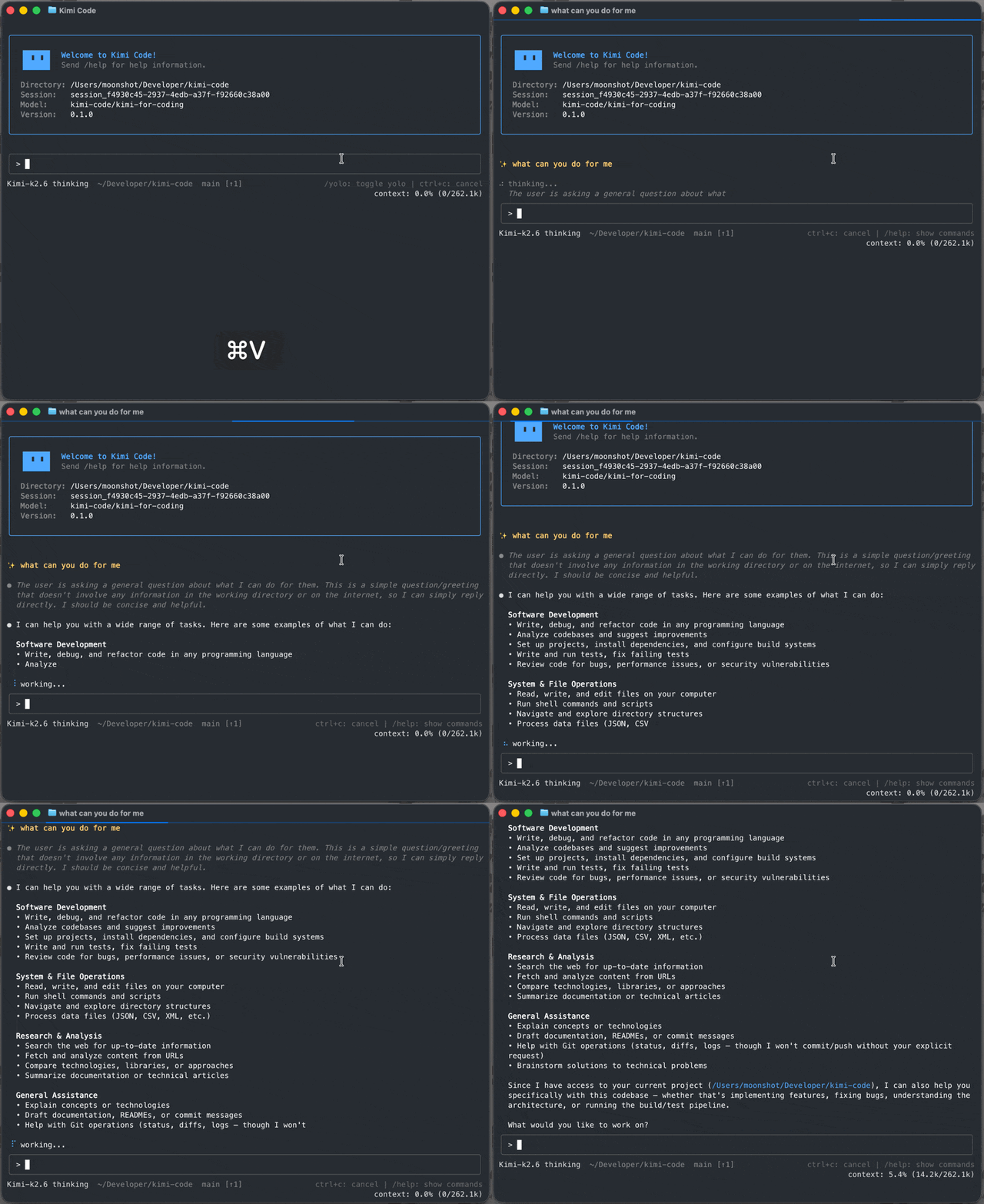
Single-Binary Distribution Removes a Whole Class of Setup Friction
Kimi Code CLI installs via a single shell script with no Node.js requirement — curl ... | bash on macOS/Linux, an equivalent PowerShell one-liner on Windows. That sounds like a small thing until you've dealt with the alternative: global npm module conflicts, PATH issues, and version mismatches are a real source of friction for CLI tools distributed as Node packages. Bundling as a single binary sidesteps that category of problem entirely, and the project backs it with a stated "ready in milliseconds" startup target for the TUI.
Video Input Is the Feature Worth Noticing
Most coding agents accept text and, at best, static images. Kimi Code CLI lets you drop a screen recording or demo clip directly into the chat and has the agent watch it — turning a reference clip into a LUT, a long video into a short edit, or a screen recording of a bug into working code. That's a genuinely different input modality than the rest of the terminal-agent field is working with, and it maps directly onto workflows that are painful to describe in text: "make it look like this" is often much easier to show than to write.
Agent Client Protocol Support Means It's Not Locked to Its Own TUI
Kimi Code CLI speaks the Agent Client Protocol via kimi acp, which lets ACP-compatible editors — Zed and JetBrains IDEs, specifically — drive a session directly over stdio, reusing the same login as the standalone CLI. This matters for the same reason ACP support matters generally: it decouples the agent's reasoning and tool-use engine from any single interface, so a team standardized on Zed or JetBrains doesn't have to give up its editor to use Kimi's models as a coding agent.

Subagents, Hooks, and a Trust-Labeled Plugin Marketplace
Beyond the core loop, Kimi Code CLI ships three built-in subagents — coder, explore, and plan — that run in isolated contexts so a broad exploration or planning pass doesn't pollute the main conversation's context window. Lifecycle hooks let you run local commands at key points to gate risky tool calls, audit decisions, or trigger notifications, which is the same pattern most serious agent harnesses converge on once "let the agent run shell commands unsupervised" stops being acceptable by default. The plugin marketplace for skills, MCP servers, and data sources surfaces each install's trust level up front — a small but meaningful detail, since MCP servers and skills are code you're choosing to let an agent execute on your behalf.

Its Terminal UI Is Built on Someone Else's Well-Regarded Foundation
The README credits pi-tui — the terminal UI library from earendil-works' Pi project — as the base its own TUI is built on, with an explicit thanks to its authors. That's a useful data point on its own: pi-tui is being reused as infrastructure by a major model lab's own CLI tool, which says something about how solid that particular piece of open-source tooling actually is, independent of anything specific to Kimi Code itself.
AI-Native MCP Configuration Skips the JSON Editing
Most coding agents treat MCP server setup as a config-file problem: find the right JSON schema, add a server block, restart, hope you didn't fat-finger a path or a token. Kimi Code CLI's /mcp-config command handles this conversationally instead — add, edit, and authenticate MCP servers from inside a running session, without opening a config file at all. Paired with the trust-labeled plugin marketplace, the two riskiest parts of extending an agent — granting a new tool access to your workspace, and getting the connection details right — both go through the same guided interface instead of hand-edited JSON that's easy to get subtly wrong.
A Web Interface Sits Alongside the Terminal UI
The TUI isn't the only surface Kimi Code CLI ships. There's also a web interface with its own session list, model picker, and background-task handling, and recent releases have been actively refining it: a flat view was added to the session sidebar, a persistent failure card with one-click resume now stays visible when a model request fails mid-conversation, and the working indicator shows retry progress (attempt N of M) during automatic retries instead of looking stalled. Session listings also now preserve how a turn ended — completed, cancelled, or failed — across server restarts, so a client can flag a previously failed session before anyone reopens it.
Background tasks and subagents run independently of the main conversation turn, and that independence is enforced deliberately: a recent fix addressed kimi -p, the non-interactive scripted invocation, exiting right after the main turn instead of waiting for background tasks and subagents to actually finish. That matters specifically for anyone driving Kimi Code CLI from a script or CI job rather than a live session — the fix means scripted runs now wait for the full picture before the process exits.
Computer Use and WebBridge Extend the Agent Past the Terminal
Beyond editing files and running shell commands, Kimi Code CLI ships an installable Kimi Computer Use capability, available from /plugins (with Windows x64 support added in a recent release alongside clearer error reporting when setup fails). A companion browser extension, Kimi WebBridge, extends the agent's reach into the browser — the CLI now surfaces install links and activation steps directly after you add it. Both are optional installs rather than defaults, which fits the project's broader pattern of surfacing capability and trust level up front instead of quietly enabling higher-risk tool access.
Built With Node.js, Shipped Without It
There's a deliberate split between how Kimi Code CLI is developed and how it's distributed. Contributing to the project requires Node.js 24.15.0 or newer and pnpm 10.33.0, with the usual monorepo toolchain — pnpm dev:cli to run the CLI from source, pnpm test, pnpm typecheck, oxlint for linting, pnpm build to build all packages. None of that reaches the end user: the published binary embeds everything a curl | bash install needs, which is exactly the "install with no Node.js required" pitch delivering on itself rather than just being marketing copy for the README.
Benefits of Kimi Code CLI
Most terminal coding agents share the same core loop. The benefits of Kimi Code CLI come from what it adds around that loop, and who those additions help.
Setup that doesn't fight your machine
The single-binary install avoids the global npm conflicts, PATH problems, and Node version mismatches that make some CLI tools painful to roll out across a team. For developers on mixed operating systems, or organizations that lock down Node installs, a self-contained binary removes a common reason a trial stalls before anyone writes a prompt. Upgrades are also simpler to reason about when there is one artifact to replace.
Editor teams keep their editor
Agent Client Protocol support lets Zed and JetBrains users drive a Kimi session from inside the editor, using the same login as the CLI. Teams that have standardized on those editors don't have to choose between their tooling and a capable coding agent, which makes adoption a smaller ask and keeps the agent close to where code review and navigation already happen.
Showing instead of describing
Video input lets the agent watch a screen recording or demo clip. For UI bugs, animation timing, or visual styles, a short clip often carries more precise information than several paragraphs of description. That makes certain front-end and motion tasks faster to hand off, and reduces the back-and-forth caused by ambiguous written instructions.
Cleaner long sessions
The built-in coder, explore, and plan subagents run in isolated contexts, so a broad search or planning pass doesn't flood the main conversation. Long working sessions stay focused on the task, which matters because context bloat is one of the most common reasons coding agents start repeating themselves or losing track of earlier decisions.
Safer extension
Lifecycle hooks, trust labels on marketplace plugins, and conversational MCP setup all address the riskiest moments in using an agent: running commands, installing third-party code, and granting new tools access to a workspace. None of these remove the need for judgment, but they put the relevant information and control points in front of the user rather than hiding them in config files.
Kimi Code CLI Use Cases
These are the situations where Kimi Code CLI's specific features make a practical difference, based on what the project documents.
Turning a screen recording of a bug into a fix
A front-end developer captures a short recording showing a layout glitch or a broken interaction and drops it into the session. The agent watches the clip, locates the relevant components, and proposes changes. The developer reviews the diff and reruns the flow. For visual bugs that are hard to describe precisely, this shortens the time spent writing a reproduction and reduces misunderstandings about what "wrong" looks like.
Matching a visual reference
The README highlights tasks such as turning a reference clip into a LUT or a long video into a short edit. For teams working on motion graphics, video tooling, or design-heavy interfaces, showing the agent the target look can be faster than translating it into parameters by hand. The output still needs a human eye, but the starting point is closer to the intended result.
Agent assistance inside JetBrains or Zed
A team that works entirely in JetBrains IDEs or Zed wants a coding agent without moving everyone to a separate terminal workflow. Running kimi acp lets the editor drive the session over stdio, so developers ask for changes, review edits, and continue working in a familiar environment. Adoption is easier because the change to daily habits is small.
Exploring and planning in an unfamiliar codebase
A developer joining a large repository uses the explore subagent to map where a feature lives and the plan subagent to outline a change, then hands implementation to the main session or the coder subagent. Because exploration runs in its own context, the main conversation receives a summary instead of every file read, which keeps the session usable for the actual implementation work.
Scripted runs in CI or automation
Teams can invoke the agent non-interactively with kimi -p for scripted tasks. A recent fix made these runs wait for background tasks and subagents to finish before exiting, which matters for automation that depends on the full result. Pinning versions and gating risky commands with hooks makes this safer to run unattended.
Kimi Code CLI vs Other Terminal Coding Agents
Feature lists across terminal coding agents look similar, so the comparison below focuses on the points where Kimi Code CLI makes distinct choices. "Many other agents" describes common patterns in the field, not any single product, and individual tools vary.
| Dimension | Kimi Code CLI | Many other terminal coding agents |
|---|---|---|
| Installation | Single binary via shell or PowerShell script, no Node.js needed | Often distributed as Node packages or language-specific installs |
| Editor integration | Agent Client Protocol via kimi acp for Zed and JetBrains | Own terminal UI, or a dedicated editor extension per IDE |
| Input types | Text, images, and video clips | Text, sometimes static images |
| MCP setup | Conversational /mcp-config inside a session | Hand-edited JSON or config files |
| Context isolation | Built-in coder, explore, and plan subagents | Varies; often a single main context |
| Plugin safety signals | Trust level shown per marketplace install | Varies; often left to the user to research |
The biggest practical differences are installation and editor fit. A binary that installs without Node removes a whole class of environment issues, which matters most when you're rolling a tool out to many machines rather than trying it on one. ACP support matters for teams that live in Zed or JetBrains: instead of switching to a dedicated terminal or waiting for a vendor-specific plugin, they can drive the agent from the editor they already use.
Video input is the most distinctive capability, but it only matters if your work involves visual problems. For back-end services and data pipelines, it's unlikely to change much. For front-end, design systems, or motion work, it can remove a lot of descriptive overhead. Evaluate it on real tasks rather than treating it as a headline feature.
Finally, the core loop of reading files, editing, and running commands is broadly comparable across the field, and model quality and pricing will often decide more than any single feature. Kimi Code CLI is tied by default to Moonshot AI's Kimi models, so comparing it fairly means trying the same tasks with each agent and its default models, under the same hooks and permissions, and judging the diffs.
Getting Started With Kimi Code CLI
Based on the project's README, a first session follows a short path. Check the project repository for the current install command before running anything, since one-line installers change between releases.
- Install the binary with the shell script on macOS or Linux, or the PowerShell one-liner on Windows. No Node.js is needed for this step.
- Authenticate with Kimi Code OAuth or a Moonshot AI Open Platform API key.
- Start in a disposable repository so you can watch how the agent reads, edits, and runs commands before pointing it at production code.
- Add hooks for risky actions such as shell commands that touch deployment or credentials, so they are gated or logged.
- Connect MCP servers with
/mcp-configand read each plugin's trust label before installing it. Our guide to MCP tool poisoning explains why that check matters. - Try the editor route with
kimi acpif your team works in Zed or a JetBrains IDE. - Test video input on a real task, such as a screen recording of a UI bug, to see whether it saves time over a written description.

If you are new to how these tools discover and call external systems, start with our explainer on the Model Context Protocol.
Common Kimi Code CLI Mistakes
Most problems with terminal coding agents come from how they are adopted rather than from the tools themselves.
Installing plugins without reading the trust label
The marketplace surfaces each plugin's trust level, but that only helps if someone looks at it. MCP servers and skills are code the agent runs on your behalf, often with access to your files, network, or credentials. Installing whatever looks useful, without checking the source and trust level, is how a convenient extension becomes a security incident. Our guide to tool poisoning explains the attack pattern in more detail.
Pointing the agent at a production repository on day one
Starting with real code before understanding how the agent behaves risks unwanted edits, surprising shell commands, and changes that are hard to untangle. A short trial in a disposable repository, with hooks enabled, shows how the tool works and which guardrails you need before it touches anything important.
Assuming behavior stays the same between releases
Kimi Code CLI ships frequent, detailed releases. Behavior you tested last month, such as how scripted runs exit or how the web interface reports failures, may have changed. Teams that adopt it without tracking releases, or without pinning versions for automation, can be surprised by changes in workflows they depend on.
Running one-line installers without checking them
Piping a remote script into a shell is convenient but means trusting whatever that script does. Copying an install command from an old tutorial or an unofficial source adds risk. Check the current command in the official repository, and in managed environments, review the script or use whatever distribution process your organization requires.
Enabling computer use and browser access by default
Kimi Computer Use and the WebBridge extension widen what the agent can touch. They are optional for good reason. Turning them on for every session, without hooks or clear limits, gives the agent far more reach than most coding tasks need. Enable them deliberately, for specific tasks, and gate sensitive actions.
Kimi Code CLI Best Practices
These practices apply to any terminal coding agent, but they map closely onto the features Kimi Code CLI exposes.
- The video-input feature is worth testing on real UI or motion-graphics tasks before assuming it's a novelty — turning a screen recording into working code or a clip into a LUT is a specific, practical use case, not a generic multimodal demo.
- ACP support is the detail that matters for editor-committed teams. If your team already standardized on Zed or JetBrains,
kimi acpavoids the usual trade-off of switching to a dedicated terminal just to get a stronger coding agent. - Review plugin trust levels before installing from the marketplace or a GitHub repo — the surfaced trust indicator is a real safety feature, but it only helps if you actually read it before granting an MCP server or skill access to your workspace.
- The release cadence (frequent, detailed changesets) is a good signal to track directly if you adopt this — Moonshot AI is shipping fixes and features at a pace worth watching via the repo's releases rather than assuming point-in-time behavior is stable.
- Start every evaluation in a throwaway repository. Watch how the agent reads, edits, and runs commands on code that doesn't matter before giving it access to a real project. Note which commands it reaches for and whether its edits respect your conventions.
- Use hooks as policy, not decoration. Configure lifecycle hooks to block or require confirmation for commands that touch deployment, credentials, or production data, and to log tool calls for later review. Treat the hook configuration as shared team code that is versioned and reviewed.
- Lean on subagents for broad exploration. Send wide searches and planning passes to the
exploreandplansubagents so the main conversation stays focused. Long sessions stay coherent when the main context receives conclusions rather than every intermediate file read. - Pin and test versions for scripted use. If you run
kimi -pin CI or scripts, pin the version, test upgrades on a branch first, and check that background tasks complete before the job reports success.
Practical Takeaway
Kimi Code CLI is a well-built entry in an increasingly crowded terminal-coding-agent field, differentiated less by having a fundamentally different architecture and more by a handful of concrete, practical choices: frictionless single-binary install, ACP editor integration instead of a captive TUI, and a video-input capability that opens up workflows text-only agents can't touch. For teams already invested in Kimi models, or evaluating terminal AI coding agents more broadly, it's a serious option worth putting next to the field rather than a me-too clone.
For the wider context on where tools like this are heading, see our pieces on background coding agents and the future of programming with AI.
Teams evaluating AI coding agent tooling, or building editor and MCP integrations around one, can get hands-on architecture help from Woyce Technologies.
FAQ
What is Kimi Code CLI?
Kimi Code CLI is Moonshot AI's open-source terminal coding agent — it reads and edits code, runs shell commands, searches files, fetches web pages, and works with Moonshot AI's Kimi models by default (as well as other compatible providers). It runs as a terminal UI, can be driven from ACP-compatible editors, and also ships a web interface, so the same agent can fit several different working styles.
What makes Kimi Code CLI different from other terminal coding agents?
A single-binary install with no Node.js requirement, native Agent Client Protocol support for driving sessions from Zed or JetBrains, and a video-input feature that lets the agent watch a screen recording or demo clip as part of a task — a capability most terminal coding agents don't offer. The basics of reading files, editing them, and running commands look much like the rest of the field. The difference is in these concrete choices, which affect install friction, editor fit, and how easily you can show the agent a problem instead of describing it.
Can I use Kimi Code CLI inside my IDE instead of the terminal?
Yes, via the Agent Client Protocol (kimi acp). ACP-compatible editors like Zed and JetBrains IDEs can drive a Kimi Code CLI session directly over stdio, reusing the same login as the standalone CLI. This decouples the agent's reasoning and tool-use engine from its own terminal UI, so a team that has standardized on Zed or JetBrains doesn't have to switch to a dedicated terminal just to use Kimi models as a coding agent. It is worth trying early if your team is editor-committed.
What are Kimi Code CLI's built-in subagents?
Three: coder, explore, and plan, each running in an isolated context so exploration or planning work doesn't consume the main conversation's context window. Keeping that work separate helps long sessions stay coherent, because the main conversation receives the results of a broad search or plan rather than every intermediate step.
Is Kimi Code CLI free to use?
The CLI itself is MIT-licensed and open source. Using it requires either Kimi Code OAuth login or a Moonshot AI Open Platform API key to access the underlying models. The licence covers the tool itself; model usage is governed by Moonshot AI's own terms and pricing, so check those before rolling it out across a team.
What is Kimi Code CLI's terminal interface built on?
Its TUI is built on top of pi-tui, the terminal UI library from the Pi coding agent project, which the README explicitly credits. That reuse is a useful signal about the quality of pi-tui as infrastructure, and it means improvements to that library can benefit more than one coding agent.
Does Kimi Code CLI have a web interface, or is it terminal-only?
Both — alongside the TUI, it ships a web interface with its own session list, model picker, and background-task status handling, which has received active updates like a flat sidebar view and persistent failure cards with one-click resume. The working indicator also shows retry progress during automatic retries, and session listings now preserve whether a turn completed, was cancelled, or failed across server restarts. That makes the web view a practical way to keep track of longer sessions and background work.
What is Kimi Computer Use in Kimi Code CLI?
It's an installable capability, available from /plugins, that extends the agent beyond file edits and shell commands. It's an optional install rather than a default, in keeping with the project's pattern of surfacing capability and trust level up front. A recent release added Windows x64 support and clearer error reporting when setup fails. It pairs with Kimi WebBridge, a companion browser extension that extends the agent into the browser. Because both widen what the agent can touch, install them deliberately and gate risky actions with hooks.
Can I configure MCP servers without editing JSON by hand?
Yes — the /mcp-config command lets you add, edit, and authenticate MCP servers conversationally from inside a session, rather than hand-editing a configuration file. That avoids the usual routine of finding the right schema, adding a server block, restarting, and hoping a path or token wasn't mistyped. Combined with the trust-labelled plugin marketplace, granting a new tool access to your workspace goes through one guided interface. Still read each server's trust label before connecting it, since MCP servers are code the agent runs for you.
What do I need to build Kimi Code CLI from source?
Node.js 24.15.0 or newer and pnpm 10.33.0. That's separate from using the CLI itself, which installs as a self-contained binary with no Node.js requirement. The repository uses a standard monorepo toolchain: run the CLI from source with the dev script, and use the test, typecheck, lint, and build commands before submitting changes. End users never touch any of this, because the published binary embeds everything a one-line install needs. You only need the toolchain if you plan to contribute or inspect the code.
Conclusion
Terminal coding agents have converged on a similar core, so the useful question is not whether Kimi Code CLI can read files and run commands, but what it does around that loop. Its answers are concrete: a single binary that avoids Node.js install friction, Agent Client Protocol support so teams can stay in Zed or JetBrains, isolated subagents that protect the main context window, hooks for gating risky actions, conversational MCP setup, and video input that suits tasks which are easier to show than describe.
The caveats are the usual ones for a fast-moving tool. Release cadence is high, so behaviour you test today may change, and the trust labels on plugins only help if someone reads them. Model access depends on Moonshot AI accounts and terms, and video input is worth validating on your own work before you treat it as a reason to switch.
A sensible next step is a time-boxed trial in a throwaway repository with hooks enabled, followed by one real task your team already understands well. If you are building editor integrations, MCP servers, or internal tooling around a coding agent and want a second pair of hands, book a call with our team.